Mobile
How to Choose the Right Smartphone for Me

In today’s fast-paced world, smartphones have become an integral part of our daily lives. They are more than just communication devices; they serve as personal assistants, entertainment hubs, and productivity tools. With an overwhelming number of options available in the market, choosing the right smartphone for yourself can be a daunting task. Whether you’re a tech enthusiast or a casual user, this comprehensive guide will help you navigate the maze of features, specifications, and options to find the perfect smartphone that suits your needs.
Understanding Your Needs
The first step in choosing the right smartphone for yourself is to understand your specific needs and preferences. Consider how you’ll be using your phone, what features are essential for you, and what your budget is. Here are some factors to take into account:
1. Usage Patterns:
Are you primarily going to use your smartphone for calling, texting, and occasional web browsing? Or are you a power user who needs a device for gaming, multimedia consumption, and heavy multitasking? Understanding your usage patterns is crucial to finding a smartphone that caters to your specific needs.
2. Budget:
Set a realistic budget for your smartphone purchase. Smartphones come in a wide price range, from budget-friendly options to premium flagship models. Knowing your budget will help you narrow down your choices.
3. Operating System:
Decide whether you prefer Android or iOS. Each operating system has its own set of features, apps, and ecosystem, and your choice might depend on your previous experiences or personal preferences.
4. Brand Preferences:
Do you have a preferred smartphone brand? Some users are loyal to certain brands due to past experiences, brand reputation, or ecosystem integration. If you have a preference, it can help narrow down your options.
5. Camera Requirements:
For photography enthusiasts, camera quality is a significant factor. Consider whether you need a smartphone with a high-quality camera, multiple lenses, and advanced photography features.
6. Battery Life:
Think about your daily routine and how often you’ll have access to a charger. If you’re constantly on the move, a smartphone with long battery life might be crucial.
7. Display Size and Quality:
The size and quality of the display are essential for your overall user experience. Whether you need a compact phone for easy handling or a larger screen for multimedia and gaming, your display preferences matter.
8. Connectivity and Network:
Make sure the smartphone you choose is compatible with your carrier and supports the necessary network bands for your location.
9. Storage Requirements:
Consider how much storage you need for your apps, photos, videos, and other data. Some smartphones offer expandable storage options, while others have fixed storage capacities.
10. Design and Build:
The design and build quality of a smartphone can be a matter of personal taste. Consider factors like materials, form factor, and the presence of water and dust resistance.
Research and Comparison
Once you have a clear understanding of your needs, it’s time to start researching and comparing different smartphones. Here are some steps you can take to make an informed decision:
1. Read Reviews:
Look for professional reviews and user feedback on the smartphones that catch your interest. Reviews often highlight the strengths and weaknesses of each device, helping you make an informed decision.
2. Compare Specifications:
Pay attention to key specifications such as the processor, RAM, storage capacity, camera capabilities, battery capacity, and display characteristics. These specifications have a direct impact on the performance and functionality of the device.
3. Consider Software and Ecosystem:
If you’re choosing between Android and iOS, consider the software features and ecosystem. iOS offers a more closed and integrated experience, while Android provides more customization options. Think about which one aligns with your preferences.
4. Visit Physical Stores:
If possible, visit physical stores to get a hands-on feel of the smartphones you’re interested in. This can help you assess the build quality, ergonomics, and user interface.
5. Seek Recommendations:
Ask friends and family for recommendations. They might have insights based on their experiences with particular smartphone brands or models.
6. Check for Software Updates:
Consider the manufacturer’s track record in providing software updates. Frequent updates ensure your smartphone remains secure and up to date with the latest features.
7. Compatibility with Accessories:
If you have specific accessories you want to use with your smartphone, ensure that the device supports them. This could include cases, headphones, or other peripherals.
Prioritizing Features
As you compare different smartphones, it’s essential to prioritize the features that matter most to you. Not all smartphones are created equal, and certain models may excel in specific areas while lacking in others. Here are some common features to consider:
1. Performance:
For smooth multitasking and gaming, prioritize a smartphone with a powerful processor and sufficient RAM.
2. Camera Quality:
If photography is a priority, opt for a smartphone with advanced camera features, multiple lenses, and high-quality image processing.
3. Battery Life:
Choose a smartphone with a long-lasting battery if you’re frequently on the go and don’t want to worry about recharging.
4. Display Quality:
A high-resolution display with vibrant colors and good outdoor visibility can enhance your viewing experience.
5. Software Updates:
Prioritize smartphones from manufacturers known for providing timely software updates and security patches.
6. Build Quality:
A well-built smartphone with durable materials and water resistance can ensure a longer lifespan.
7. Ecosystem Integration:
Consider how the smartphone fits into your existing ecosystem. For example, if you use other Apple products, an iPhone might be a seamless addition.
Making a Shortlist
After considering your needs, conducting research, and prioritizing features, create a shortlist of potential smartphones that meet your criteria. Narrow it down to a few options, and then delve deeper into the specifics of each choice.
Assessing Value for Money
While it’s tempting to opt for the latest flagship smartphone with all the bells and whistles, it’s important to assess whether you’re getting value for your money. Consider whether the premium features of the flagship models are truly necessary for your usage. In many cases, mid-range or budget-friendly smartphones offer excellent value for money and can satisfy the needs of the majority of users.
Here are some ways to assess the value for money:
1. Budget Alternatives:
Look for smartphones that offer a good balance of features and price within your budget. Don’t automatically gravitate towards the most expensive models.
2. Feature vs. Price Ratio:
Evaluate whether the premium features of a flagship smartphone justify the higher price tag. In some cases, the differences between mid-range and flagship models may not be significant for your needs.
3. Long-Term Considerations:
Think about the longevity of your smartphone. Will it remain functional and receive software updates for a reasonable period? This can significantly impact the overall value.
4. Resale Value:
Consider the resale value of the smartphone. Some brands and models tend to retain their value better than others.
Assessing the User Experience
The user experience plays a crucial role in your satisfaction with your smartphone. Factors such as the user interface, ease of use, and the quality of pre-installed apps can greatly influence your overall satisfaction.
1. User Interface:
Consider the user interface of the smartphone. Android offers more customization options, while iOS provides a more standardized and intuitive experience. Choose the one that aligns with your preferences.
2. Bloatware:
Check for pre-installed apps that you may not need. Some manufacturers add unnecessary bloatware, which can clutter your device and impact performance.
3. Software Updates:
Regular software updates are essential for the security and performance of your smartphone. Choose a brand with a strong track record of providing timely updates.
4. Accessibility Features:
If you have specific accessibility needs, look for smartphones that offer the features and options you require.
5. Ergonomics:
The ergonomics of a smartphone are important. Consider the device’s size, weight, and how it feels in your hand.
Consider Brand and Warranty
The choice of brand can influence your overall satisfaction with your smartphone. Reputable brands often have better customer support, warranties, and a proven track record of producing reliable devices.
1. Brand Reputation:
Consider the reputation of the brand in terms of product quality, customer support, and reliability.
2. Warranty and Customer Support:
Check the warranty and customer support policies of the manufacturer. A longer warranty period and good customer support can be crucial in case of issues.
3. Repairability:
Some smartphones are more repairable than others. Check whether the manufacturer offers official repair services and access to replacement parts.
Network Compatibility
Make sure that the smartphone you choose is compatible with your carrier and supports the necessary network bands for your location. A device that doesn’t work with your carrier’s network can be a frustrating and costly mistake.
1. Carrier Compatibility:
Check with your mobile carrier to ensure that the smartphone you’re considering is compatible with their network.
2. Network Bands:
Different regions and carriers use different network bands. Ensure that the smartphone supports the necessary bands for your location.
Test the Smartphone
If possible, try out the smartphones on your shortlist in person. Visiting a physical store allows you to get a hands-on experience with the devices and make an informed decision. Pay attention to the following aspects:
1. Build Quality:
Assess the materials, build quality, and overall feel of the smartphone in your hand.
2. User Interface:
Interact with the user interface to get a sense of the device’s responsiveness and ease of use.
3. Camera Quality:
Take a few photos and test the camera to see if it meets your expectations.
4. Display Quality:
Evaluate the display’s quality, brightness, and color accuracy.
5. Ergonomics:
Check if the smartphone feels comfortable in your hand and pocket.
Finalizing Your Decision
Once you’ve considered all the factors and tested the smartphones, it’s time to make your final decision. Choose the smartphone that best aligns with your needs, preferences, and budget. Keep in mind that there is no one-size-fits-all answer, and the right smartphone for you may not be the same as for someone else.
Staying Informed
The world of smartphones is constantly evolving, with new models and features being introduced regularly. To stay informed and make the most of your smartphone purchase, consider the following:
1. Follow Tech News:
Stay updated with the latest tech news to be aware of new smartphone releases, software updates, and trends in the industry.
2. Explore Apps and Accessories:
Take advantage of the vast ecosystem of apps and accessories available for your smartphone. These can enhance your user experience and productivity.
3. Security and Privacy:
Stay informed about the latest security and privacy features on your smartphone. Regularly update your device’s software to protect your data.
4. User Guides and Tutorials:
Explore user guides and tutorials to learn more about the features and capabilities of your smartphone.
Conclusion
Choosing the right smartphone for yourself is a decision that requires careful consideration of your needs, preferences, and budget. By understanding your usage patterns, conducting research, prioritizing features, and assessing value for money, you can make an informed choice. Remember that the perfect smartphone for you may not be the latest flagship model, as different users have different needs. Ultimately, the right smartphone should enhance your daily life, providing the features and capabilities that matter most to you. Stay informed about the ever-evolving world of smartphones to make the most of your device and stay connected in today’s digital age.

You may like
Mobile
How to Increase Battery Life on Android
If your Android phone barely makes it through the day, the problem is not always a weak battery. High screen brightness, demanding apps, background activity, poor cellular reception, location services, high refresh rates, heat, and an aging battery can all affect how quickly your phone loses power.
The most effective solution is to find what is actually consuming the battery rather than turning off every feature on your phone.
Android already includes several tools for managing power, including Battery Saver, Adaptive Battery, app battery controls, and battery-usage reports. The exact names and locations of these options can vary between Pixel, Samsung Galaxy, OnePlus, Xiaomi, Motorola, and other Android phones, but the underlying approach is similar.
This guide explains how to increase battery life on Android without making your phone unnecessarily difficult to use. It also covers what to change first, which popular battery-saving tricks are overrated, and when changing settings will no longer solve the problem because the battery itself has aged.
Start With the Battery Usage Screen
Before changing settings, find out where your battery is going.
On many Android phones, you can start with:
Settings → Battery → Battery usage
The exact wording may differ depending on the manufacturer and Android version.
Look at the apps and features consuming the most power. Do not automatically assume that the item at the top is causing a problem.
For example, imagine you spent two hours watching videos. Your video-streaming app may be responsible for a large percentage of battery use simply because you actively used it. That is normal.
A more interesting case is an application that you opened for only five minutes but which has consumed significant power in the background.
That is where investigation becomes worthwhile.
A simple way to diagnose battery drain
Ask yourself three questions:
- Which app is using the most battery?
- Was I actually using that app for that long?
- Is the battery draining quickly when the screen is off?
The third question is particularly useful.
If your phone loses a lot of battery while sitting unused, background activity, poor network reception, synchronization, location services, or a software issue may deserve more attention than screen brightness.
This diagnostic-first approach is better than applying ten battery-saving tricks at once because you can see which change actually makes a difference.
1. Reduce Screen Brightness and Screen-On Time
The display can be one of the largest sources of battery consumption, particularly if you use your phone for several hours each day.
You do not need to keep brightness extremely low. Instead, avoid unnecessarily high brightness and use adaptive brightness if it works well for your environment.
Also reduce the amount of time the screen stays on after you stop using the phone.
For example, if your screen timeout is five minutes, a quick notification check can leave the display active for several unnecessary minutes. Setting a shorter timeout can quietly save power throughout the day.
What about 120Hz displays?
A high refresh rate makes scrolling and animations feel smoother, but it can consume more power than a lower refresh rate in some usage conditions.
If your phone offers options such as Adaptive, Standard, or High refresh rate, adaptive mode is often a sensible compromise.
Use the high refresh rate when smoothness matters to you. If you are travelling and trying to make the battery last until you reach a charger, switching to a more battery-friendly display mode can be worthwhile.
This is a good example of a broader principle: battery saving does not have to be permanent. You can change settings according to the situation.
2. Turn On Adaptive Battery
Android’s built-in power management can reduce unnecessary activity from apps that you rarely use.
Adaptive Battery is designed to learn how you use applications and manage background activity accordingly. Google recommends keeping Adaptive Battery and battery optimization enabled on supported devices.
This is preferable to manually restricting every application.
Consider two apps on your phone:
- A messaging app you depend on throughout the day.
- A shopping app you open once every few weeks.
They do not need identical background behavior.
Restricting the shopping app may have little impact on your everyday experience, while aggressively restricting the messaging app could delay notifications or interfere with features you actually need.
Let Android’s optimization features handle routine management, then manually intervene when a particular app behaves unusually.
3. Find and Restrict Problem Apps
If one application consistently consumes excessive battery, investigate it before changing system-wide settings.
Depending on your phone, you may be able to choose whether an app is allowed to run freely in the background, use battery in an optimized manner, or operate under a restricted setting.
Use caution here.
Some applications legitimately need background access. Examples include:
- Messaging applications that need to receive notifications.
- Navigation applications during active trips.
- Smartwatch or fitness-device companion apps.
- Work applications that synchronize important information.
- Security or authentication applications.
Instead of restricting everything, focus on applications that have high background usage without a clear reason.
A practical example
Suppose you install a new social-media application and notice that your phone starts losing 30–40% of its battery during a normal workday.
Check battery usage.
If that application has unusually high background consumption, restrict its background activity and observe the phone for a day or two.
If battery life improves significantly, you have identified a genuine source of the problem.
This is much more useful than blindly disabling Bluetooth, GPS, Wi-Fi, and notifications.
4. Use Wi-Fi When It Makes Sense
Wi-Fi is not automatically a battery drain that must be switched off.
In many everyday situations, a reliable Wi-Fi connection can be preferable to mobile data. Google recommends using Wi-Fi instead of mobile data when practical.
The more important issue is network conditions.
When cellular reception is poor, your phone may work harder to maintain communication with the network. You may notice this particularly in places such as underground parking areas, remote roads, large buildings, or locations with weak coverage.
If your phone is constantly searching for or maintaining a weak signal, battery consumption can become noticeably higher.
When you know you will be somewhere without usable service and do not need connectivity, airplane mode can sometimes be more effective than repeatedly trying to maintain a connection.
5. Manage Location Services Instead of Disabling Them Completely
Location is useful for navigation, maps, weather, fitness tracking, emergency features, and many other services.
You therefore do not need to turn Location off permanently.
Instead, review which applications have access to your location and whether they actually need it.
A weather application may not need continuous location access if you are comfortable selecting your city manually. A navigation application, however, needs location while you are actively navigating.
The goal is not “turn GPS off.”
The better goal is:
Give location access to the applications that genuinely need it, when they need it.
This preserves useful functionality while reducing unnecessary background activity.
6. Turn Off Hotspot When You Finish Using It
Mobile hotspot or tethering can consume considerable power because your phone is simultaneously maintaining its mobile connection and providing a network connection to another device.
If you use your phone as a hotspot for a laptop during a meeting, remember to switch it off afterward.
This sounds obvious, but it is an easy source of accidental battery drain because the phone can continue operating as a network access point after you have stopped actively using the laptop.
If you frequently use hotspot functionality while travelling, carrying a charger or power bank may be more practical than trying to minimize every other phone feature.
7. Use Battery Saver Strategically
Battery Saver is one of the simplest tools available when you need additional runtime.
It can reduce background activity and modify certain device behaviors to conserve energy. Depending on the phone, you may also be able to configure it to activate automatically when the battery reaches a chosen level.
Battery Saver is particularly useful in situations such as:
- You have 15% battery remaining and several hours before you can charge.
- You are travelling without access to a charger.
- You are attending an event where you need your phone available for emergencies.
- You are hiking and need your phone to remain available for navigation.
- You forgot to charge overnight.
However, there is no universal reason to keep Battery Saver permanently enabled.
Some background processes and features may behave differently when power-saving restrictions are active. If you have plenty of battery and want your phone to operate normally, standard Android power management may be sufficient.
Think of Battery Saver as a runtime extension tool, not a sign that something is wrong with your phone.
8. Reduce Unnecessary Notifications
Notifications do not normally represent the largest source of battery drain individually, but they can create a chain of unnecessary activity.
A notification can wake the screen, activate network communication, produce sound or vibration, and encourage you to unlock the phone and spend more time on it.
If dozens of applications are allowed to notify you about promotions, recommendations, news, and other non-essential events, review those permissions.
Keep important notifications from applications such as messaging, banking, authentication, work, and communication services.
Turn off notifications you never use.
The battery benefit may be modest for any single app, but reducing unnecessary interruptions has another advantage: you spend less time repeatedly waking the phone.
9. Keep the Phone Cool
Battery temperature deserves more attention than it usually receives.
Google recommends avoiding overheating, particularly when the phone is fully charged.
Consider this real-world situation:
You are driving on a summer afternoon. Your phone is mounted behind the windshield, running navigation, connected to mobile data, streaming music, and charging from the car.
That is a demanding combination.
The sunlight heats the device while navigation, connectivity, the display, and charging create additional heat.
If the phone becomes unusually hot, move it away from direct sunlight and reduce demanding activity when possible.
Also avoid leaving a phone in a hot car.
Heat is not simply a short-term battery-life issue. Repeated exposure to excessive temperatures can contribute to long-term battery degradation.
10. Do Not Regularly Drain the Battery to Zero
Modern lithium-ion batteries do not require regular full discharge cycles for ordinary use.
You do not need to deliberately drain your phone to 0% and then recharge it to 100% to “calibrate” the battery.
Google explicitly notes that repeatedly taking a phone from full to empty is unnecessary for normal battery management.
If your phone reaches 30% and you have an opportunity to charge it, there is no need to wait until it reaches 1%.
The more useful habit is to avoid unnecessary heat and use battery-protection features offered by your device manufacturer when appropriate.
11. Update Android and Your Apps
If battery drain suddenly becomes much worse, ask whether anything changed.
Did you:
- Install a new app?
- Update an existing application?
- Install a system update?
- Change network settings?
- Start using a new wearable?
- Begin using GPS or hotspot more frequently?
Software problems can occasionally produce unusual battery consumption.
Google recommends checking for system and app updates when troubleshooting battery problems.
If the problem started immediately after installing a particular application, check its battery usage.
A simple restart is also worth trying when your phone begins behaving unusually.
12. Avoid “Battery Booster” Apps That Promise Miracles
One of the easiest mistakes is assuming that another application is required to manage your battery.
Android already contains built-in systems for controlling background activity and power consumption, including Doze, App Standby, Adaptive Battery, and Battery Saver.
A third-party cleaner that constantly closes applications may make your phone feel temporarily “cleaner,” but repeatedly stopping and restarting applications is not a universal battery-saving solution.
Before installing a battery optimizer, ask:
What can this app do that Android’s own Battery settings cannot?
If the answer is unclear, you probably do not need it.
Your built-in Battery usage screen is generally the better starting point because it tells you which applications and features are actually consuming power on your device.
Battery Saver vs Adaptive Battery vs Manual App Restrictions
These features are sometimes confused, but they solve different problems.
| Feature | Best for | When to use |
|---|---|---|
| Adaptive Battery | Everyday automatic optimization | Keep enabled for normal use |
| Battery Saver | Extending remaining battery | When you need the battery to last longer |
| Manual app restriction | Controlling a specific problem app | When one app has excessive background usage |
| Lower brightness | Reducing display consumption | When the screen is brighter than necessary |
| Airplane mode | Stopping cellular/wireless communication | Flights or locations where connectivity is unnecessary |
The important point is that these tools are not competing solutions.
You can use Adaptive Battery every day, restrict one problematic application, and activate Battery Saver only when your battery is low.
When Settings Cannot Fix the Problem
Sometimes the correct answer is not another setting.
Lithium-ion batteries gradually lose capacity as they age. If your phone is several years old and battery life has steadily declined, the physical battery may simply hold less energy than it did when new.
Look for signs such as:
- Much shorter runtime than when the phone was new.
- Unexpected shutdowns despite showing remaining charge.
- Rapid percentage changes.
- Unusual heating during ordinary use.
- A battery that appears swollen or causes the screen or casing to lift.
A visibly swollen battery should not be punctured, squeezed, or treated as a normal battery problem. Stop using the device if it is unsafe and seek professional service.
If the phone is otherwise in good condition, replacing an aging battery can sometimes provide a more meaningful improvement than changing dozens of software settings.
Frequently Asked Questions
What is the fastest way to improve Android battery life?
Start by checking Settings → Battery → Battery usage and identify the largest unexpected consumer. Then reduce excessive screen brightness, shorten screen timeout, review background-heavy applications, and use Battery Saver when necessary.
Should I keep Battery Saver on all the time?
You can, but you do not necessarily need to. Battery Saver is most valuable when you need additional runtime. For normal daily use, Adaptive Battery and sensible app management may provide a better balance between battery life and full functionality.
Does closing background apps save battery?
Not automatically. Android already manages background activity. Instead of repeatedly closing every app, investigate applications that show unusually high background battery consumption.
Does dark mode save battery?
It can, particularly on OLED and AMOLED displays, although the amount saved depends on the display, brightness level, content, and usage pattern.
Does charging overnight damage an Android battery?
Modern phones have charging-management systems designed to reduce problems associated with prolonged charging. However, heat remains important, and many manufacturers provide optimized or adaptive charging features designed to manage long charging periods.
Why does my Android battery drain overnight?
Check Battery usage for applications with background activity. Also consider poor cellular reception, location-related activity, syncing, connected accessories, and recently installed applications. If overnight drain suddenly becomes abnormal, look for something that recently changed.
How can I increase battery life on Android without turning off important features?
Use a targeted approach. Keep essential services such as messaging, navigation, and authentication working normally, while reducing unnecessary screen time, background activity, notifications, and excessive connectivity. The goal is optimization, not disabling everything.
Practical Decision Guide: What Should You Do First?
If you want the biggest improvement with the least inconvenience, follow this order.
If your battery drains while you actively use the phone:
Start with screen brightness, refresh rate, video streaming, gaming, and other demanding activities.
If the battery drops quickly while the phone is idle:
Check Battery usage for background-heavy apps, poor network conditions, synchronization, and location activity.
If one app dominates battery usage:
Investigate that application first. Restrict its background activity if appropriate, update it, reinstall it, or remove it if you no longer need it.
If you regularly run out of battery before reaching a charger:
Use Battery Saver strategically and consider carrying a power bank for predictable high-use situations.
If you travel frequently:
Prioritize reliable connectivity, reduce screen consumption, manage hotspot use, and protect the phone from heat rather than disabling essential features.
If your phone has become hot:
Stop treating the problem as purely a battery percentage issue. Reduce demanding activity, protect the device from direct heat, and investigate whether an app or charging situation is causing excessive temperature.
If the phone is several years old:
Check whether battery degradation is the real limitation. A replacement battery may provide a bigger improvement than further software adjustments.
If battery life suddenly became terrible:
Look for a recent app installation, update, unusual background process, poor signal, or system problem before assuming the battery is permanently damaged.
The Bottom Line
The best battery-saving strategy is not to turn your Android phone into a stripped-down device. It is to identify where energy is being wasted and make targeted changes.
Start with the Battery usage screen. Reduce unnecessary screen-on time. Keep Adaptive Battery enabled. Control applications that consume excessive power in the background. Use Wi-Fi and Location intelligently, activate Battery Saver when you actually need extra runtime, and keep the device away from excessive heat.
Most importantly, do not rely on outdated battery myths or miracle “booster” applications.
A few targeted changes based on your actual usage pattern are usually more effective than dozens of generic tricks. And when an old battery has genuinely lost capacity, recognizing that limitation can save you hours of experimenting with settings that cannot restore the battery’s original capacity.
The practical rule is simple: measure first, change the biggest drain, observe the result, and replace the battery when hardware aging—not software settings—is the real problem.
Mobile
7 Tips for Developing Apps for Foldable Smartphones

There was a time when owning a smartphone was associated with luxury. Only rich ones could afford them.
But at the start of the 21st century, the smartphone market exploded with dozens of new brands, not only making the price range affordable but also introducing some exciting new features.
Foldable smartphones instantly grabbed the attention of people. Foldability was a unique feature, people could treat their phone like a brochure or leaflet while reading something on it.
And despite the constantly evolving technology and new trends, foldable devices are still here. Samsung, most notably, produces such phones that people still enjoy using and holding in their hands.
If you’re a mobile app developer, you’ve got to think differently when creating an application for foldable devices. Here are some of the factors and alterations to consider in this regard:
1.Create a Resizable App
Since you’re developing an app for foldable smartphones, you must consider the size of such phones. Their screens are significantly larger than traditional phones. Also, these phones are equipped with multi-window mode.
So it’s your responsibility to design an app that’s compatible with both sizes of a screen as well as the multi-window mode. Do some research and find out a simple line of code to make your app resizable according to the mode in which it’s opened.
2.Consider the Two States of the Phone
It’s important to account for the two states of the phone. They both are different from each other. A simple phone will not have a folding feature while the foldable one will work differently.
The foldable phones can be used with both folded and unfolded screens. While designing the functionalities of your app, consider the foldability feature of an app.
Normally, foldable screens have a lot of space on the screen compared to unfoldable ones; the latter is quite rigid. A user has more freedom and space to work with when he’s on a foldable screen.
Be creative and think out of the box. Introduce features that will give the foldable smartphone users a feeling of pride.
3.Make Your App Capable of Handling Multi-Window Mode
A multi-window mode is a mode in which two apps run simultaneously on the same screen. This is only possible on foldable screens — and this is what makes them different from the traditional screen.
But there’s one aspect you need to take care of while designing your app — make it capable of handling multiple apps at the same time. Consider the space your app will occupy, the multi-tasking capabilities of a device, and changes in the app accordingly.
4.Screen Continuity
As said before, there are two states of such phones — folded and unfolded. As a developer, it’s your job to make this experience a seamless one for the end-user. Minimize the number of interface layout shifts to prevent any interruption in the user experience.
5.Adjust Screen Ratio
Foldable devices have different screen ratios, that’s because some have short and bulkier screens while some have long and thin screens. It’s the developer’s responsibility to design an app that fits both types; the app must adjust itself on all foldable screens.
To do it, implement minAspectRatio and maxAspectRatio and find out if the screen is compatible with the device or not.
6.Ensure 100% Quality
Most importantly, you should ensure that your app caters to all smartphones, not just the foldable ones. As we have multiple smartphone brands all across the world, they keep coming up with their own types of smartphones.
It’s the mobile app development company’s responsibility to make sure that the functionality of the app remains optimum, irrespective of the fact the device it is operated on.
Therefore, it’s recommended to plan before you implement. Figure out how many devices your app is supposed to support. Do your research about the screen ratio and resolutions of different foldable phones.
There’s not much you can do about the future technology, but you can take the oldest ones into account before developing your next app.
During the development phase and after completion of a project, run your app on different foldable screens and analyse its performance. You will learn where you need to improve to make your app perfect for all screens and devices.
7.Take Feedback & Improve
Rarely will you reach the most perfect version of your app in the first attempt. You have to keep iterating to meet the increasing requirements of the users. With every new phone launch, developers bump into new challenges.
So the only way to create viral apps is to take feedback seriously and improve your app. The same goes for the apps designed for foldable screens. Keep an eye on the market trends, note specifications of the latest specifications, and reviews on the Play store, so you know how to improve your app further.
Final Thoughts
Mobile app development is a skill that requires both technical expertise and knowledge, as well as creativity. And when it comes to foldable smartphones, you have to be careful because of the varying screen sizes and the user requirements.
A foldable phone user is likely to use multiple apps at the same time, so your app must be optimized for speed. Likewise, it should render a seamless transition experience for different screen modes.
While designing your next mobile app, keep these tips in mind to cater to the needs of all users.
Mobile
How to Take Screenshot on iPhone 11?
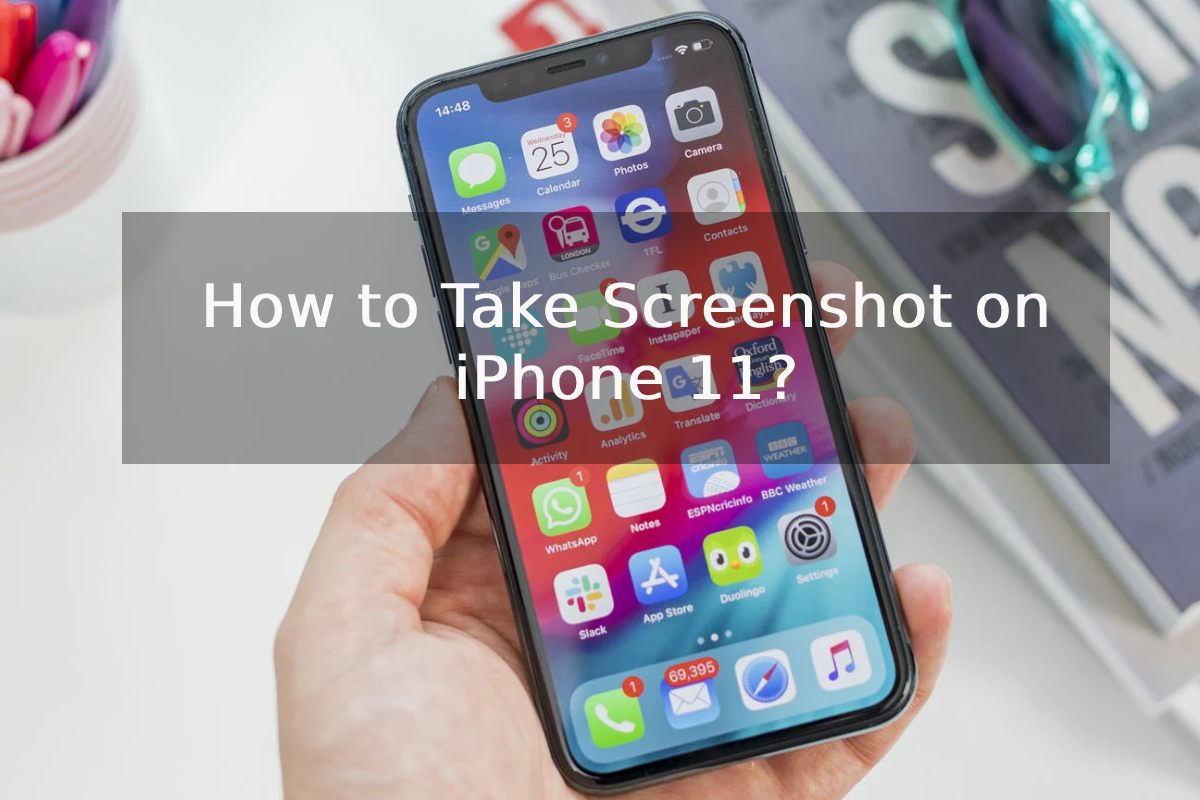
Are you looking for ways on how to take screenshot on iPhone 11? Nowadays, one of the most important things on the internet is screenshots, because they never used to be this powerful earlier, but immense increment in mobile working made them so! And today we are here to find out various ways on how do you take a screenshot on iPhone 11.
Hopefully, you are a regular iPhone 11 user and eager to know the entire procedure. So, stay tuned till the end as we talk about the whole thing with step-by-step explanations.
No matter what, the iPhone 11 remains a powerful smartphone. Be it camera, screen, or battery life, everything is top-notch. Even though the way of the screenshot is unique now, it is not impossible.
Also Read: How to Take Screenshot in Samsung M31
As many people routinely take screenshots, not everyone knows how exactly to capture a screenshot as every phone has its own functions. So here are some ways on how to screenshot on iPhone 11.
A Step-by-Step Guide on How to take Screenshot on iPhone 11
Since the iPhone 11 lacks a home button, you must be thinking, taking screenshots is a difficult task. Aren’t you?
As many people don’t know about many functions of a phone, they seek help from google by searching how do you take a screenshot on iPhone 11? If you’re also among those, know that taking screenshots on iPhone 11 is easy and the steps are as follows :
Step 1- Press the side button and volume up button
Also known as the sleep/wake button, you can take screenshots on iPhone 11 by simultaneously pressing the volume up and the side button.
The moment you release your fingers and let go of the buttons, you’ll be notified as a screenshot captured on your screen.
Step 2- Edit Screenshot
Once you capture the screenshot, you’ll be notified and also hear a camera shutter sound. Once you see a screenshot preview on your screen, now you can simply edit.
To edit, tap on it and see the options to edit the screenshot. Besides, you can also crop the screenshot according to your choice.
Step 3- Share Screenshot
Now that you know how to screenshot on iPhone 11, you may also want to share what you’ve saved. To share the screenshot you captured, you can either tap and hold on to the preview to directly send the screenshot to any friend or any app, or else you can go to your screenshot album in the Photos app and select the screenshot and share it.
Therefore, even if you dismiss the screenshot preview, know that it will be automatically saved in your gallery or in the Photos app. For instance, if you want to share something through Whatsapp, you’ll have to choose a contact to share the screenshot and then tap next.
How to Take Screenshot on iPhone 11 Using Assistive Touch
Are you looking for ways on how to take screenshot on iPhone 11 by using one hand? Know that it is possible with the assistive touch and here are the steps :
Step 1- Enable Assistive touch
Go to Settings>General>Accessibility> Assistive Touch and then enable the Assistive touch option. For those who don’t know what an assistive touch is, then know it is a semi-transparent button added to your screen.
Step 2- Customize top-level menu
Click on the “Customize top-level menu” option, then tap the custom icon and you’ll see a list from which to select the screenshot button. By doing this, the screenshot button will be added to the Assistive touch menu.
Step 3- Take a screenshot using Assistive touch
Once you’ve added the screenshot button on the assistive touch menu, you can simply take a screenshot using one hand. All you need to do is tap on the assistive touch button and then the screenshot button.
So by using this method you can stop your search on how to take screenshot on iPhone 11?
Where to view screenshots on iPhone 11?
Are you done taking screenshots? Besides looking for ways on how to take screenshot on iPhone 11, you must probably be looking for the screenshot you’ve captured. To view all your screenshots in one place, go to your screenshot album inside the photos app.
Just like any album in the gallery, the screenshots you take are also automatically added to the album.
Now that you know about how to screenshot on iPhone 11, the next thing is to go through what you’ve saved. So all you need to do is go to the Photos app, from there tap the albums tab and visit the screenshot section and you’ll find everything you’ve captured in one place.
Now, let’s figure out “How do you take a full screenshot on iPhone 11”
Once you’ve taken a screenshot on your iPhone 11, by using any of the above methods, another feature iPhone 11 allows is to take a full screenshot.
All you need to do is tap the preview in the bottom left corner before it disappears then simply choose the full page option in the top right corner.
Why won’t my iPhone 11 Take a Screenshot?
Many times taking a screenshot doesn’t work well. In such cases, the option here is to force reboot your iPhone. All you need to do is hold the power button for at least 10 seconds and then restart your phone.
Some facts you must know while taking screenshots on iPhone 11
Besides, looking for ways to figure out How do you take a screenshot on an iPhone 11, there are some other facts that every iPhone 11 user must know- Check them Out yourself.
- Aside from cropping the screenshot, you can also mark the screenshot you’ve captured by using any pen or pencil from the tools displayed at the bottom of the screen.
- After taking a screenshot on your iPhone 11, know that you can add text, signature, or even highlight boxes. This can be done with the help of additional edit options, which you can find in the bottom left corner as a plus button.
- The Assistive touch button feature allows iPhone 11 users to capture a screenshot with a single touch of a digital button.
- iPhone 11 screenshot feature allows its users to immediately view and edit the taken images.
It helps after all!!!
No doubt, the iPhone 11 is capable of performing many things, and taking awesome screenshots is one of them. Be it sharing screen images with friends on social media or saving a funny meme, screenshots are extremely helpful for every situation.

How to Increase Battery Life on Android

Guest Blogging Guide: How to Build Backlinks, Authority & Traffic in 2026

Best Laptops for Video Editing: 7 Powerful Picks for 4K Creators

Ghost Blogging vs. Regular Blogging: Understanding the Key Differences

How Important is Machine Learning?

Top 3 Microsoft Project Alternatives

Developing a Marketing Plan for Toothpaste

Why Choose Drupal Over WordPress: A Comprehensive Comparison

Types of Deep Learning Networks